Pages

Search This Blog

Showing posts with label Facebook. Show all posts

Sunday, July 20, 2014

How To Change Facebook Name After Limit

Facebook is best social media as we know and they always tries to make more simple for using and try introduced what is treading or what the people want. But Facebook have some policies guidelines for using their features and option in correct manner without producing spam. Facebook usage terms never allow any account to use any feature in excessive way. As in my recent article i also discuss about name limit of Facebook page. Change Name of Facebook Pages After crossing limit Means After 200+ likes your are not able to change Page name just to reduces the spams and help to making Facebook more user friendly. But now days Facebook build best and responsive help center. Now for many of the features which are not publicly able to change you can request to Facebook Customer help support for solution.
Today i going to discuss about the another feature from the Facebook help support team after request to change name after crossing limit. As per rule you are eligible to change name for particular account 4,5 times only.  After crossing limit you are not able to change it again and you are only able to change name from 5 listed names. So don't worry if you have crossed out limit then no need to worry you have another change to get your real name back on your personal account. We have the solution to change to once but if you have not crossed the limit then i recommend you to try my trick about 
Making single Name Facebook Account i hope like that one. Now for change name follow below steps.
change name limit fb
Requirements:-

  • One government or any Id Proof which show your image and name clearly.
  • Choose your own Profile pic same of that person in id person
  • Little bit common sense :P

Request Facebook To Change Profile Name


  • Make sure that your account change name limit is full from Account settings. They show this message
"You can't update your name right now because you've already changed it too many times"
  • If you want to request then You need to fill request form then Click Here
  •  Open this form from that account whose name you want to change
  • Now you need to enter the accurate information in request form.
  • Enter the accurate First, middle and then last new name in form which you want.
  • Then select the reason for changing name
  • Then upload Image of your correct document which clearly show the name you are using.
  • Then click on the send button and wait for a week for request approval
change name fb form
After the request approve Facebook will change your name automatically. Sometimes Facebook don't accept your request and they may mention the reason in your email. Possibly your new name do not match name policies that's why Facebook rejects new name.

I feel that you enjoy this tutorial and hope it works successfully for your. Must share with others also. If you have any doubt must leave your precious comment

Find Your Friend’s Online Presence On Facebook


Find Your Friend’s Online Presence on Facebook Who Turned Off Chat with You.


Turn off chat is one of the very useful option Facebook chat offers to its users. You can turn off chat with your friend or the other way around. It is useful if you find someone disturbing you so often.


You can turn off chat with your friends individually or completely. So the person can’t see whether you are online or offline. It is part of Facebook privacy. Similar case happen to you also. If you suspect anyone close to you turned off chat with you, you may feel worried. You can’t see their online presence and also feel some tension. So when turn off chat with someone from your end, respect their feelings also.

There is no plugin, script or anything else to find who turns off chat with you on Facebook. But you can quietly find the person is online or offline from within Facebook. The below tips seem to work in most of the cases.

How to Know Someone Turned off You from their Chat on FB?


Though there are lots of tricks and tips available online to find who turned off chat in your friend list, none seems One Percent correct. Because Facebook doesn’t provide any defect to break this barrier. So what is the solution?

Steps to Find Who’s Online and Appears Offline to You on Facebook Chat.


There are few things from that you can find the online presence of your friend who turned off you from Chat. Check whether he / she is continue posting, like posts or sharing content on Facebook. It’s one option. But the most reliable one is below.


  • Open the chat window of your friend whom you suspect is online, but seem offline to you.
  •    Send a message.
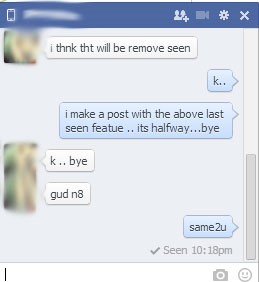
  • If he or she is online you can see the last seen message after a few seconds below your message.
  • It normally appears when your friend read the message and it confirm their online presence.

Hope the above works for you. But remember. If your friend is intelligence, he can easily hide the last seen message with little effort.

Conclusion:

There is no best way to find friend’s online presence on Facebook who turned off. If you use any Chrome plugins it won’t give you the correct result. Also normally such app don’t last more.


How To Backup & Archive All Your Facebook Data


How to download your Facebook archive

You can download your own archive of this data from Facebook. Here’s how:

  • Go to Facebook.com/settings
  • Click Your Facebook Information.
  • Tap “Download Your Information.”
  • You can download a copy of your Facebook information at any time. You can download a complete copy, or you can select only the types of information and date ranges you want. You can choose to receive your information in an HTML format that is easy to view, or a (JavaScript)JSON format, which could allow another service to more easily import it.
  • Downloading your information is a password-protected process that only you will have access to. Once your copy has been created, it will be available for download for a few days.
You can use this as a copy of your profile that you can download if you plan to leave the social network, but it’s also just a reminder of how much Facebook knows about you.
Related Posts Plugin for WordPress, Blogger...